What background removal does
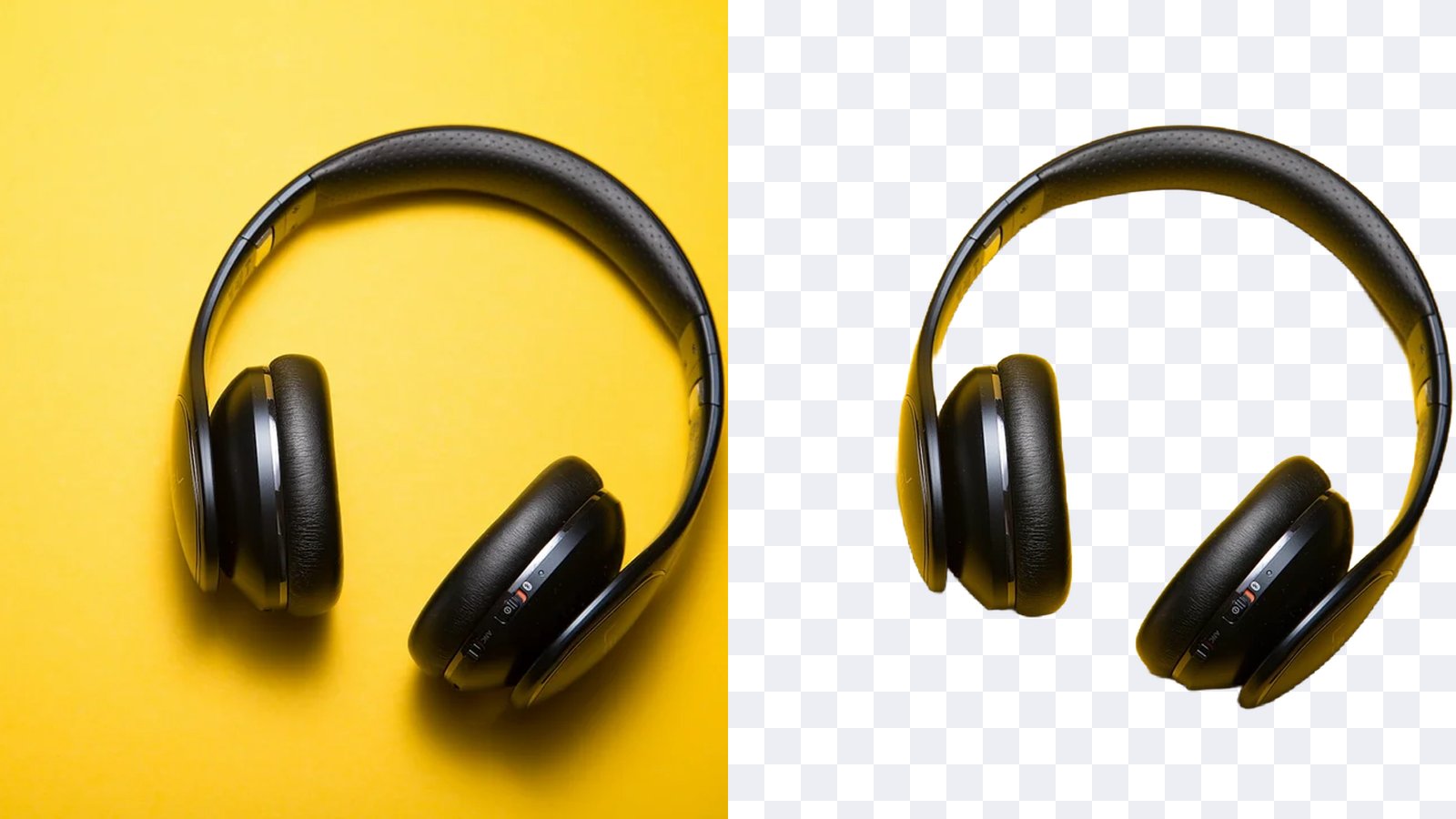
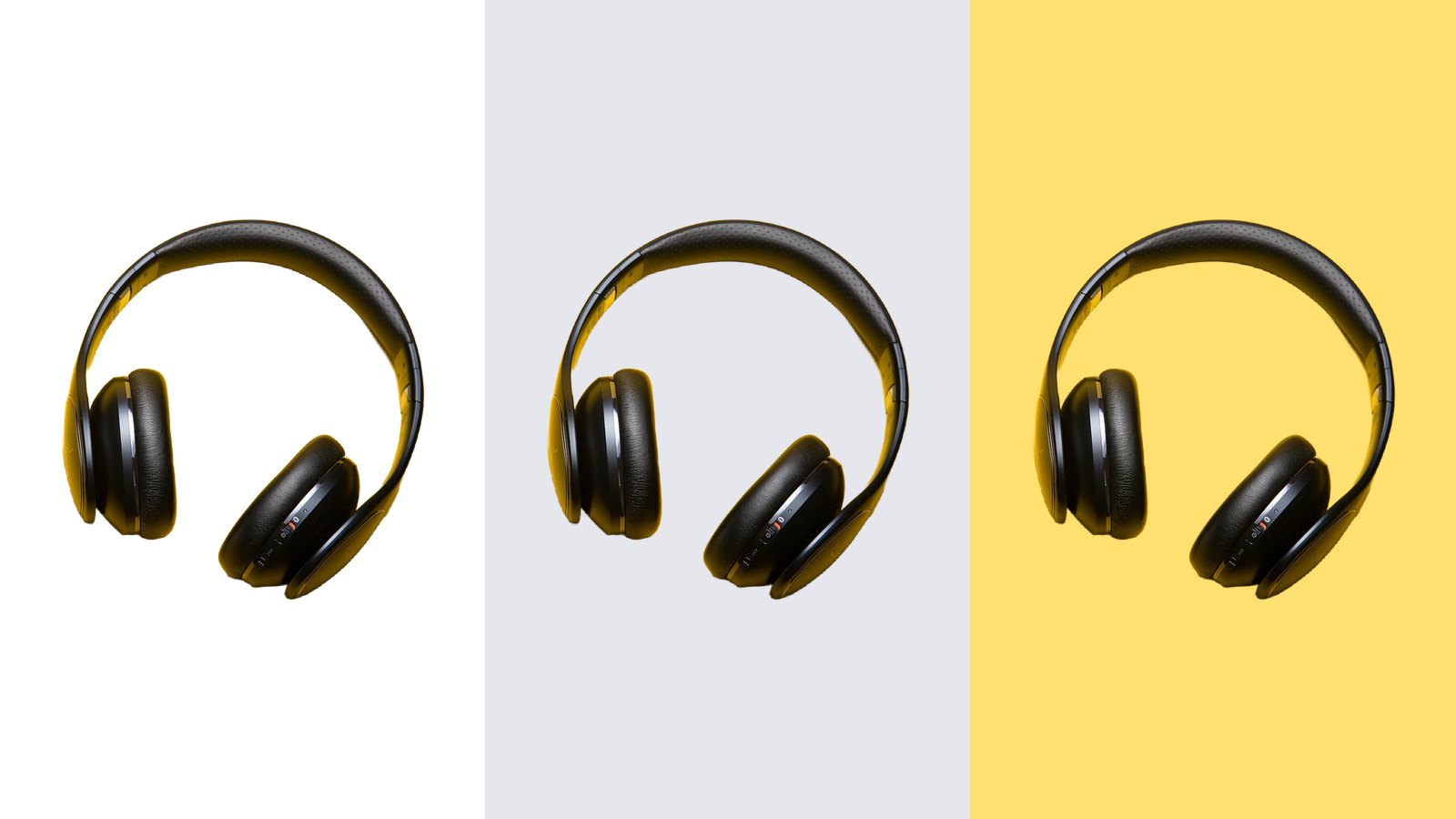
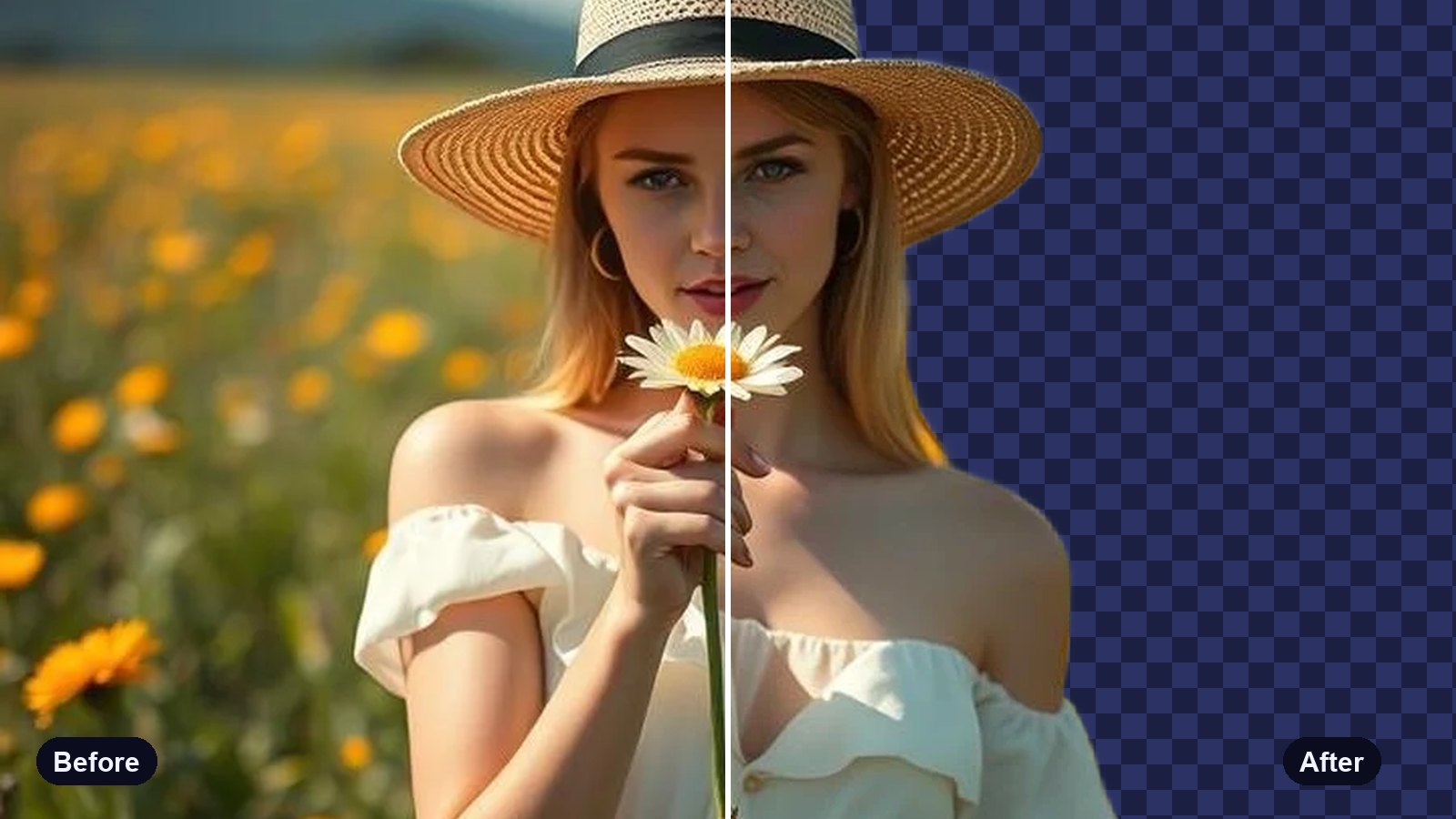
Background removal cuts the main subject out of a photo: a person, a pet, a product. What is left is a cut-out with a see-through background. You can keep it see-through for a design, put it on a colour, or drop it into a new scene.
Online tools do this with an AI model trained on millions of photos. It works out which pixels belong to the subject and which belong to the background, including the hard bits like hair and fur. For most photos it takes a few seconds.
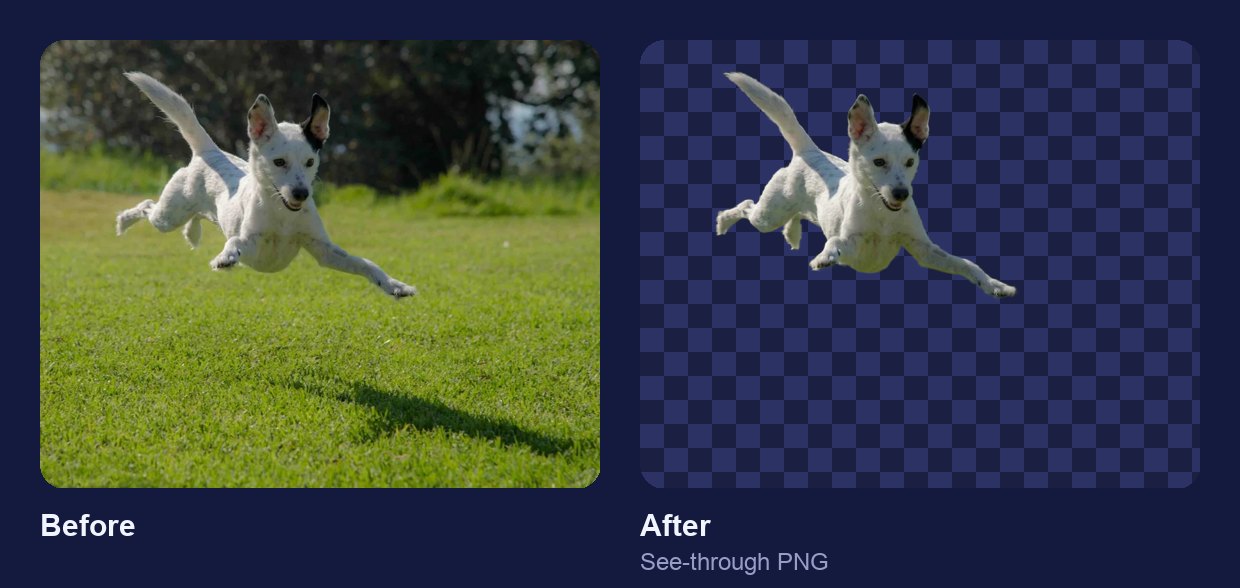
How to remove a background for free
- Open the remover. The Erase BG background remover works in any browser, with no account.
- Add your photo. Choose a file, drag it in, or paste it. JPG, PNG and WebP all work.
- Wait a few seconds. Your photo is sent to our server, the background is removed, and the cut-out appears on a checkerboard, which means see-through.
- Pick a background, or keep it clear. Leave it see-through, or tap a colour to put the cut-out on it.
- Download. The free download is a PNG up to 800 px on its longest side, with no watermark. Pro saves the full-resolution file.
Tips for a cleaner cut-out
- Start with a sharp photo. Blur at the edges becomes blur in the cut-out. A photo in focus gives crisp hair and outlines.
- Contrast helps. A dark jacket against a pale wall is easier to separate than a grey jacket against a grey wall.
- Keep the whole subject in frame. Hands or feet cut off by the photo edge stay cut off.
- Busy backgrounds are fine. You do not need a studio wall. The model is used to streets, rooms and gardens.
- Save as PNG. JPG cannot store see-through pixels, so a JPG cut-out always gets a solid background.
- Crop afterwards, not before. A little space around the subject gives the model context. Trim it later with the image cropper.
When a cut-out is worth it
Shop listings. Marketplaces and online stores often ask for products on white. A cut-out on white looks the same across your whole catalogue.
Profile pictures. Put your face on a clean colour, then make it round with the circle cropper.
Designs and posts. A see-through cut-out sits on top of any poster, thumbnail or slide without a box around it.
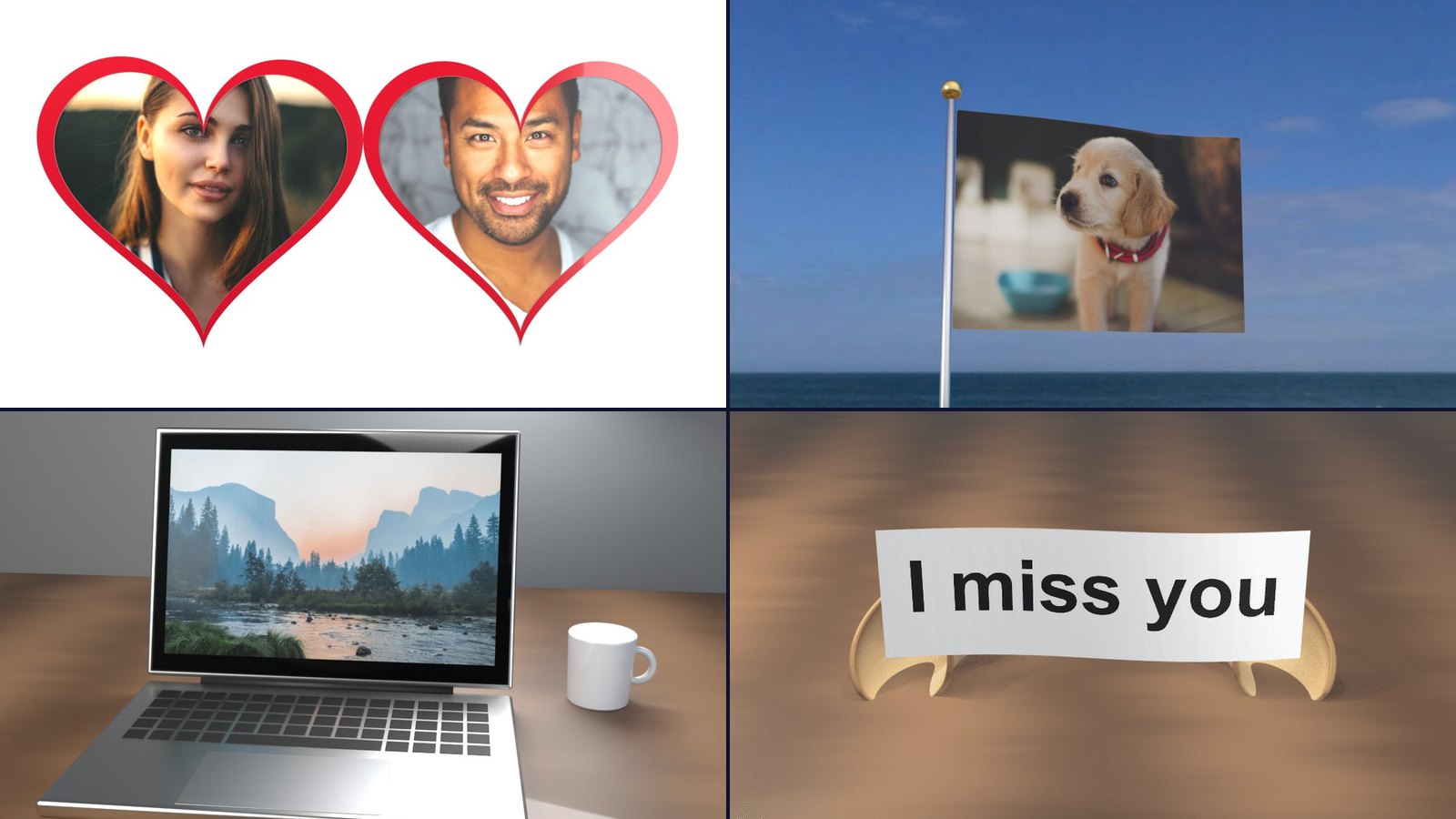
Something more fun. Put the cut-out photo inside a 3D GIF scene, like a waving flag or a heart locket.
Free or Pro?
The free download is big enough for chats, profile pictures and most social posts. If you need to print the cut-out, zoom into it, or use it on a large banner, Pro saves it at full resolution, up to 4000 px. Neither version has a watermark.
Moving from remove.bg before it closes on 1 December 2026? See what changes and what to do.
Your photo is used only to make your cut-out. It is not shared or shown to anyone else.