Free Background Remover
Cut out people, pets and products in seconds. Free, no sign-up.
No photo? Try one
See the result in a few seconds.
Do more with your cut-out
Recolour it, crop it or put it in a GIF. Every tool here is free.



What is a background remover?
A background remover takes a photo and separates the main subject from everything behind it. The result is a cut-out with a transparent background that you can place on any new background. It works by finding the edges of the subject and removing the pixels outside them.
Erase BG does this automatically. You upload a photo, the subject is found and the background is removed in a few seconds. There are no settings to tweak and nothing to select by hand.
It is useful for product photos, profile pictures, social media and anywhere you need the subject of a photo without its original background.
 Before
 After
AfterHow to remove a background
- 1
Upload a photo
Open the tool and click the upload area, or drag a photo onto it. JPG, PNG and WebP files up to 10 MB work. Processing starts straight away, with a progress bar so you know it is working.
- 2
See the cut-out
The result appears on a checkerboard, which marks the see-through areas, so you can see exactly what was removed.
- 3
Download or recolour
Download it as a PNG, which keeps the transparency so you can use the cut-out anywhere. Or pick a background colour first: white, black, blue or any custom colour, previewed live before you download.

Tips for clean cut-outs
Use good light
The subject should be well lit and stand out from what is behind it. Daylight gives the best results. Avoid heavy shadows and backlighting.
Look for clear edges
Hair, fur and see-through objects are the hardest parts to separate. Plain backgrounds make the job easier, though busy ones work too.
Go for resolution
Edges are found more accurately on larger photos. If a result looks rough, try a higher resolution copy of the same photo.
Shoot products on plain
Put the item against a plain background when you take the photo. It gives the cleanest cut-out and saves you trying several shots.

Common uses for background removal
Online sellers
Shoot products anywhere, remove the background and put them on white or a brand colour, so the whole catalogue looks consistent.
Social media
Clear a distracting background from a profile picture. Clean headshots sit on any branded background for team pages.
Designers
Isolate elements for compositing: move a person into a new scene, or lift a logo off its white box so it sits on top of other images.
Job seekers
Turn a casual photo into a professional headshot. Swap the bedroom or coffee shop behind you for a neutral colour or an office scene.

What kind of photos work best
One main subject (works well)
A person standing alone, a single product on a table or an animal on a plain background gives the cleanest cut-out.
Plain, contrasting backgrounds (works well)
A white wall, blue sky or green grass gives a clear edge to follow. Busy, patterned backgrounds still work, with slightly rougher edges.
Two megapixels or more (works well)
Larger photos keep the most detail around hair and fine edges. Most phone photos are well within the 10 MB limit.
Group photos (harder)
With several people the tool can keep only some of them or miss parts. It works best with one or two people.
Blurry, dark or very small photos (harder)
Low-quality photos, or ones below about 800 by 600 pixels, give little edge detail to work with, so results can be rough or miss parts.




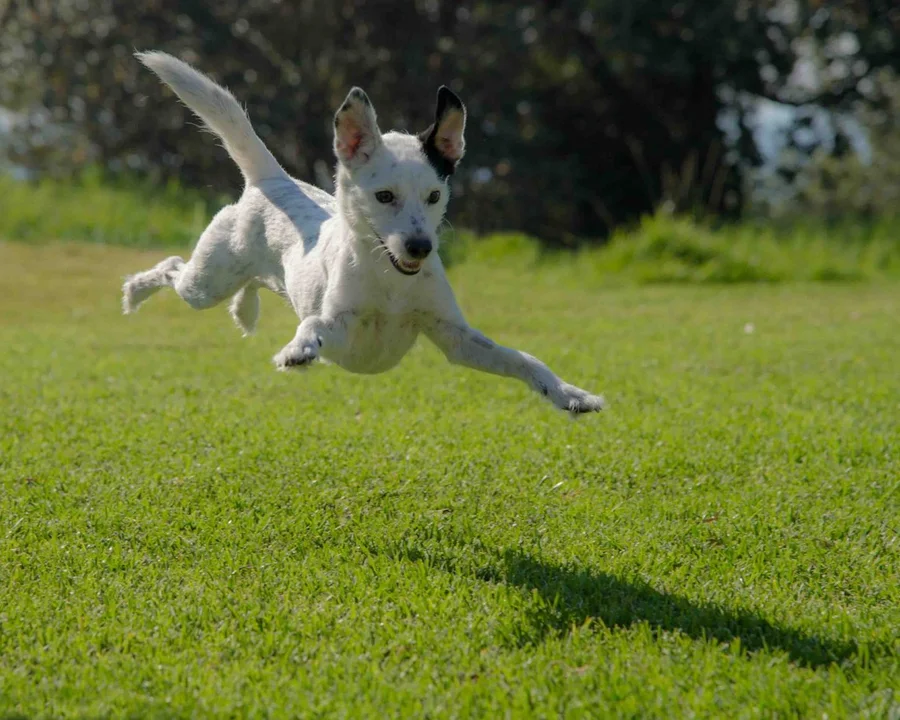 Before
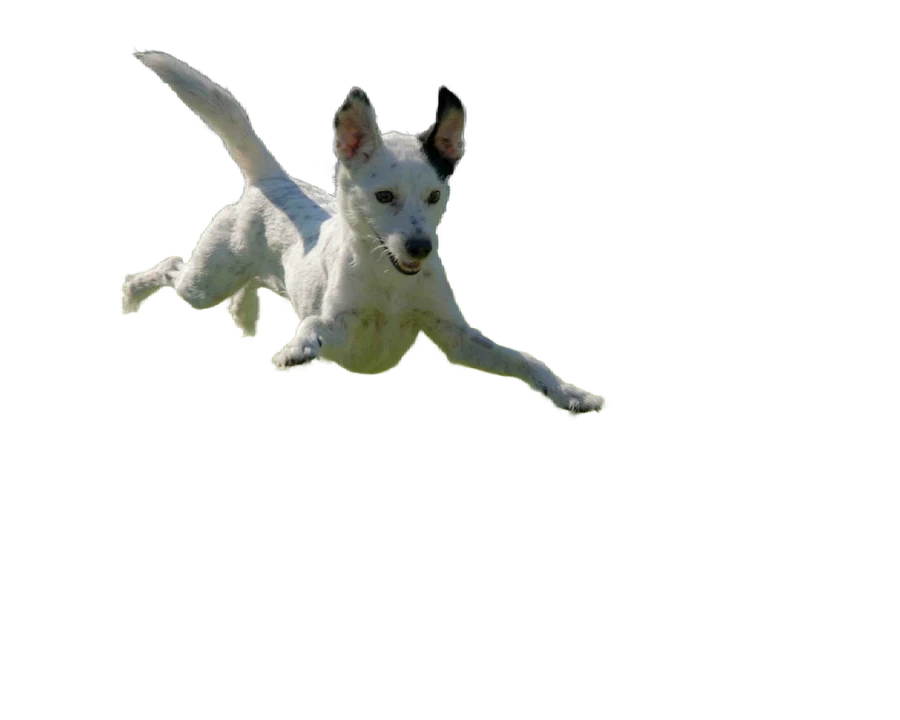 After
AfterHD and 4K background removal
Your photo is processed at its full resolution, and the cut-out keeps the same size as the photo you upload. There is no quality mode to choose: upload a 4K photo and you get a 4K cut-out.
HD, for everyday photos
Profile pictures, product photos and social posts look clean at 1080p. Fewer pixels means a faster result, usually a few seconds.
4K, for print and large displays
Print, large screens and high-end product shots benefit from the extra detail. There are four times as many pixels to work through, so it takes a little longer, with sharper edges to show for it.
What you get, and what happens to your photo
A PNG with a see-through background
PNG keeps the transparency, so the cut-out sits on any colour without a white box around it. Add a solid colour right in the tool, or take the result on to crop it, resize it or convert it to JPG or WebP.
Your photo stays yours
Your photo is sent to our server, the background is removed and the result comes back to you. It is used only to make your cut-out, and never shared, sold or shown to anyone else. You own your photos and your results.
Try it on your own photo
Free, no sign-up.
Upload a photo