Free online image editing tools that work in your browser. No signup required.
Convert between JPG, PNG, and WebP formats easily.
Crop images to perfect dimensions for social media and prints.
Resize images without losing quality for any use case.
Create perfect circles for profile pictures and logos.
Advertisement
Erase BG gives you a complete set of image editing tools that run entirely in your browser. No downloads, no signups, and no file size limits. Every tool processes your images on your own device, so your photos never leave your computer. You open a page, upload a photo, and the tool does the work right there in the tab.
There are tools for common editing jobs like removing backgrounds, cropping images to exact sizes, and converting between file formats. There are also creative tools for making double exposures and animated GIFs. Each tool is designed to do one thing well, with no clutter.

Every tool follows the same simple pattern. You upload an image, the tool processes it, and you download the result. The interface changes based on what the tool does, but the core flow stays the same.
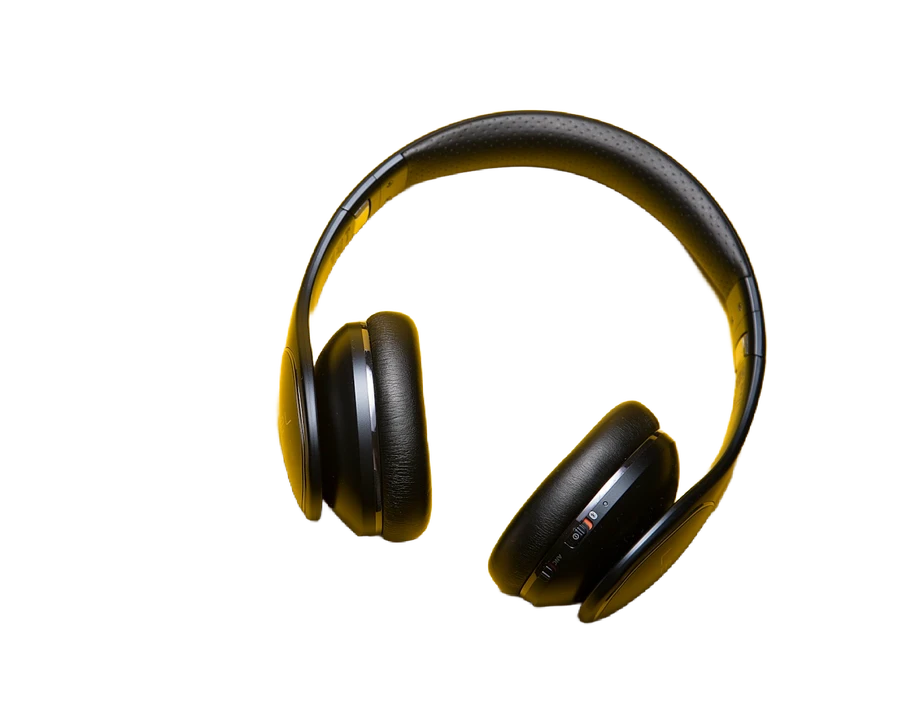
The background remover is the most used tool. Upload any photo and the AI detects the subject, removes the background, and gives you a transparent PNG. You can then use the background color changer to add a solid color behind your subject. This is useful for product photos, profile pictures, and social media graphics.
The image resizer and cropper let you control the exact dimensions of your output. Pick a preset size for Instagram, Twitter, or LinkedIn, or enter custom dimensions. The circular cropper is for profile pictures and logos where you need a perfect circle.
The image converter changes your file format. Upload a PNG and save as JPG, or convert a WebP to PNG. This is useful when a website or platform requires a specific format and your image is in the wrong one.

The double exposure generator blends two photos into one. You control the blend mode, opacity, and positioning of each layer. Start with a portrait as the base and overlay a landscape or texture. Adjust the mix until you get the look you want. The result is a single composite image you can download and use anywhere.
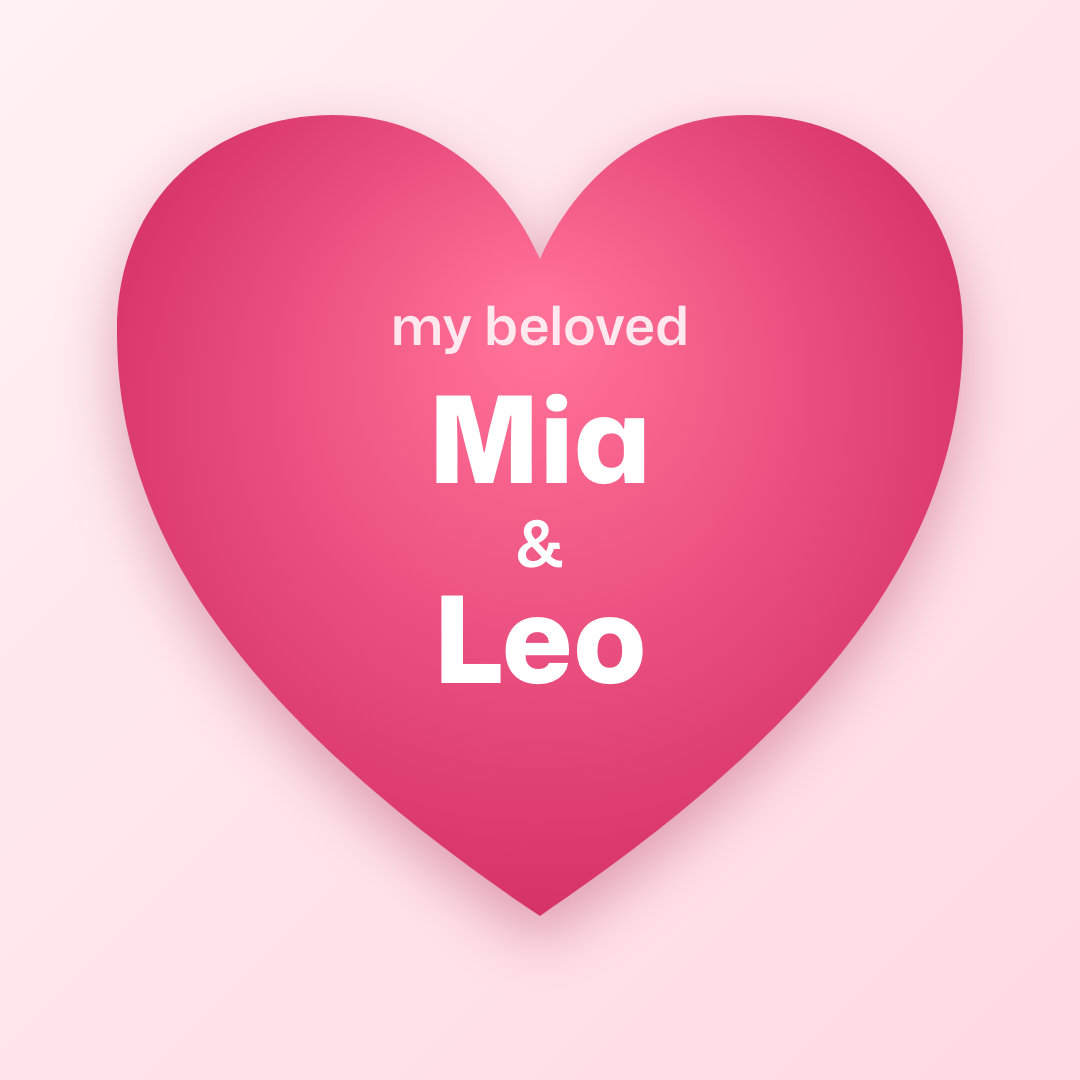
The GIF tools let you make animated images from your photos. The heart locket GIF maker creates an opening locket animation. The I Miss You GIF maker does a similar thing with a different style. The flag GIF maker turns a photo into a waving flag. The meme GIF maker lets you add text to create simple animated memes.
Each GIF tool has its own template and settings. You upload a photo, pick colors or text options, and the tool generates the animation frame by frame. The output is a standard GIF file that works on social media, messaging apps, and websites.

Start with high-resolution images. The tools work with any image size, but higher quality inputs give better outputs. For background removal, use photos with clear separation between the subject and the background. Good lighting helps the AI detect edges more accurately.
For double exposures, choose a portrait with a plain background as the base. The overlay image should have strong shapes or textures. Landscapes, city skylines, and abstract patterns all work well. Try different blend modes to see which combination looks best. Screen mode tends to give lighter results, while multiply mode gives darker blends.
When cropping, keep the aspect ratio in mind. Most social media platforms use specific ratios. Instagram prefers square or portrait, Twitter uses 16:9 for headers, and LinkedIn uses a specific banner size. The preset sizes in the cropper cover the most common dimensions.
For GIFs, use a photo with good contrast and a clear focal point. The animation works best when the subject is centered and the background is simple. Avoid photos with lots of small details, as they can look messy in GIF format.
When converting formats, remember that JPG is best for photos with gradients and lots of colors. PNG is better for images with text, logos, or sharp edges. WebP gives smaller file sizes but is not supported by all older software. Choose the format based on where you plan to use the image.
The background remover is popular for e-commerce product photos. Sellers take a photo of a product against any background, remove the background, and replace it with white or a color that matches their store. This gives a consistent look across their product catalog.
The resizer and cropper are used by social media managers who need images in multiple sizes for different platforms. Instead of opening a full editing suite, they upload once and crop or resize to each platform's requirements. The circular cropper is used for profile photos that need to fit into circular frames on Twitter, Instagram, and LinkedIn.
The GIF tools are used for personal messages and social media posts. People make heart locket GIFs for anniversaries and birthdays. Meme GIFs are used for casual posts and reactions. Flag GIFs are used to show support for teams or countries.
The double exposure generator is used by designers and hobbyists who want to create artistic images without learning complex software. The tool handles the blending, so you just pick two photos and adjust the settings until it looks right.
All processing happens in your browser. Your images are never uploaded to a server.