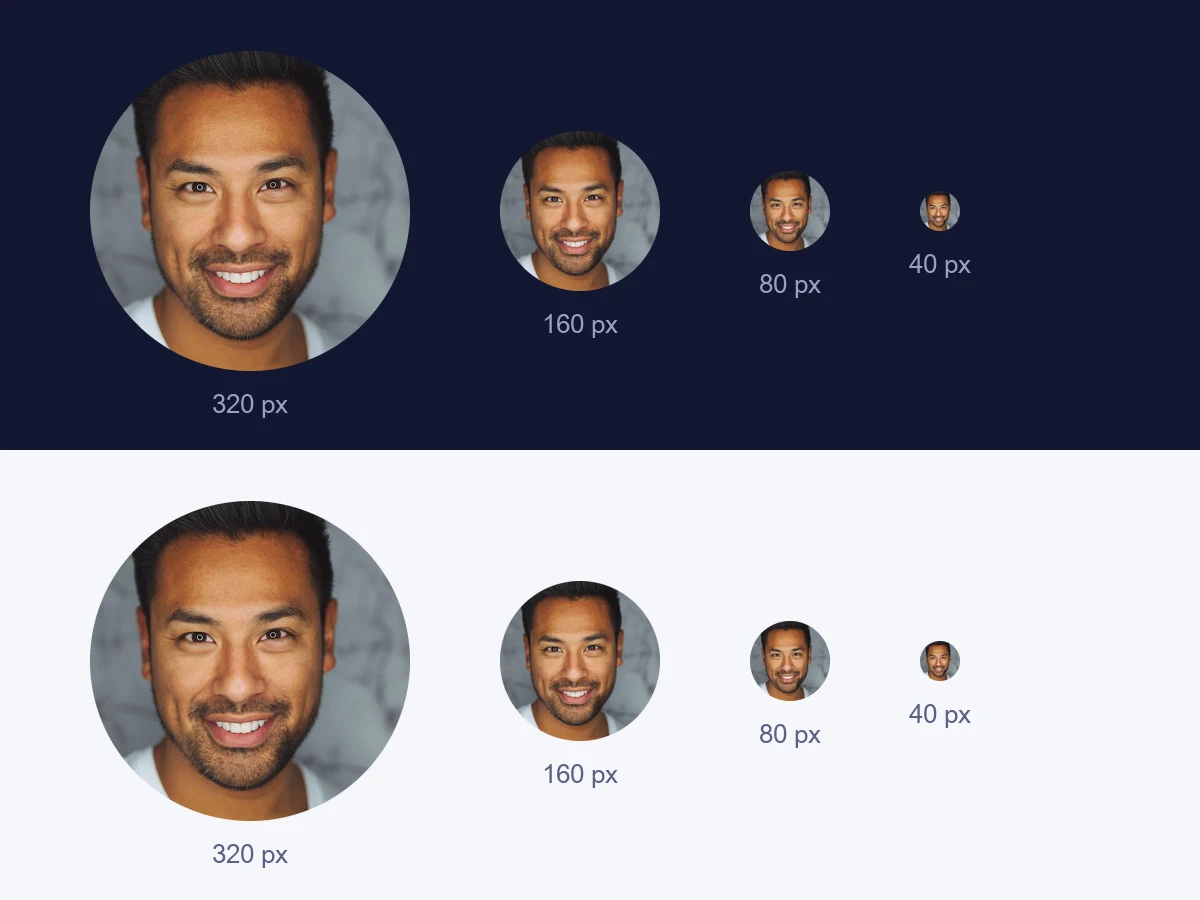





Upload an image to preview the circle crop
People who cropped circular images also used
Advertisement
Create a clean circular crop for profile images and branded identity assets. No upload needed.
A circular image cropper is a tool that cuts a photo into a perfect circle. Instead of keeping the standard rectangular shape, it removes everything outside the circle and leaves a round image. The result is a clean avatar or profile picture that fits the circular frames used by most social platforms, messaging apps, and branding guidelines.
Every social media platform uses circular profile pictures. Instagram, Twitter, Facebook, TikTok, LinkedIn, and WhatsApp all display user avatars inside a circle. When you upload a square or rectangular photo, the platform crops it automatically. That automatic crop often cuts off the top of someones head, removes part of a logo, or leaves awkward empty space in the corners. Cropping your image to a circle before uploading gives you full control over what shows inside the frame.
Our circular image cropper does this entirely in your browser. You upload a photo, and the tool creates a centered circular crop. The result preserves the highest quality pixels from the center of your image. Your file never reaches a server. Everything stays on your device.

Follow these steps to create a round profile picture using our tool.

Circular profile pictures are everywhere online. Every major social network uses a circle as the default avatar shape. Instagram, Facebook, Twitter, LinkedIn, TikTok, and YouTube all display user photos inside a circular frame. Even messaging apps like WhatsApp, Telegram, and Signal use circular avatars for contacts and group chats.
Business profiles also use circular images. Company logos are often displayed inside a circle on LinkedIn company pages, Google Business profiles, and social media brand accounts. A circular logo crop ensures the mark fits perfectly inside the profile picture frame without being cut off or distorted.
App icons on phones and tablets are rounded squares or circles. Developers use circular crops to create app store icons that match the operating system design. The same is true for user avatars in apps, forums, and online communities. Anywhere a user represents themselves with a photo, a circular crop is likely involved.
A square crop keeps the full width and height of the image equally. It produces a rectangular result that works for many purposes. A circle crop goes further by removing everything outside the circular boundary. This creates a softer, more modern look that draws the eye to the center of the image.
The main advantage of a square crop is that it preserves more of the original image. No pixels are clipped beyond the edges. A circle crop removes the corners, which means some parts of the image are lost. For profile pictures, this trade off is usually worth it because the circular shape is what the platform requires anyway.
Another difference is the background. A square image has visible corners that sit against the white or gray background of a profile page. A circular image floats on the background with no hard edges. This creates a cleaner, more professional appearance that blends smoothly with any page design.

The tool looks at your image and finds the smallest dimension. If your photo is 1200 pixels wide and 800 pixels tall, the tool uses 800 as the diameter of the circle. It then crops the center of the image to an 800 by 800 pixel square and applies a circular mask. Everything outside the circle is removed. The result is a round image with a transparent background.
The transparent background is important. When you place the circular image on a social media profile, the platform background color shows through the transparent areas. This means the circle blends smoothly with any background color, whether it is white, dark, or a custom brand color. There are no white edges or hard borders around the circle.
Because the processing happens in your browser, the tool works fast. There is no upload waiting time and no file size limit. You can crop a 50 megapixel photo just as quickly as a 1 megapixel photo. The only limit is what your browser can handle.
Profile pictures are the most common use, but circular cropping has other applications too. Team headshots on a company about page look cohesive when cropped to the same circle size. Circular badges and stickers for social media campaigns use circle crops. Ecommerce sellers use round product closeups for listing thumbnails.
Designers use circle crops to create consistent icon sets. A row of circular icons looks organized and balanced. The uniform shape draws the eye across the row and makes each icon easy to recognize. Circular crops also work well for testimonial photos, author headshots, and speaker profiles on event pages.
All processing happens inside your browser. Your images never leave your computer. Nothing is uploaded to any server and no files are stored after you close the page. There are no hidden limits, no watermarks, and no usage caps. You can crop as many images as you need, completely free.