



Erase BGRemove backgrounds from images in seconds

Upload your image

Drag and drop or click to browse

Choose file

Free Image Resizer

Resize any photo to exact pixel dimensions directly in your browser. No upload needed.

Advertisement

What is an image resizer?

An image resizer is a tool that changes the pixel dimensions of a photo — making it larger or smaller while keeping the image content intact. Unlike cropping, which removes pixels from the edges to change the composition, resizing scales the entire image up or down. Every pixel in the original image is still there after resizing, just at a different size.

Resizing is one of the most common image edits on the web. Social media platforms require specific image sizes. Websites need images that fit their layout without slowing down the page. Print projects need images at the right resolution for the output size. Instead of opening heavy editing software, you can resize any image in seconds with our browser-based tool.

Our image resizer works entirely in your browser. You upload a photo, enter your target dimensions or choose a preset, and download the resized result. Your image never leaves your computer. There are no file size limits, no signup, and nothing is stored after you close the page.

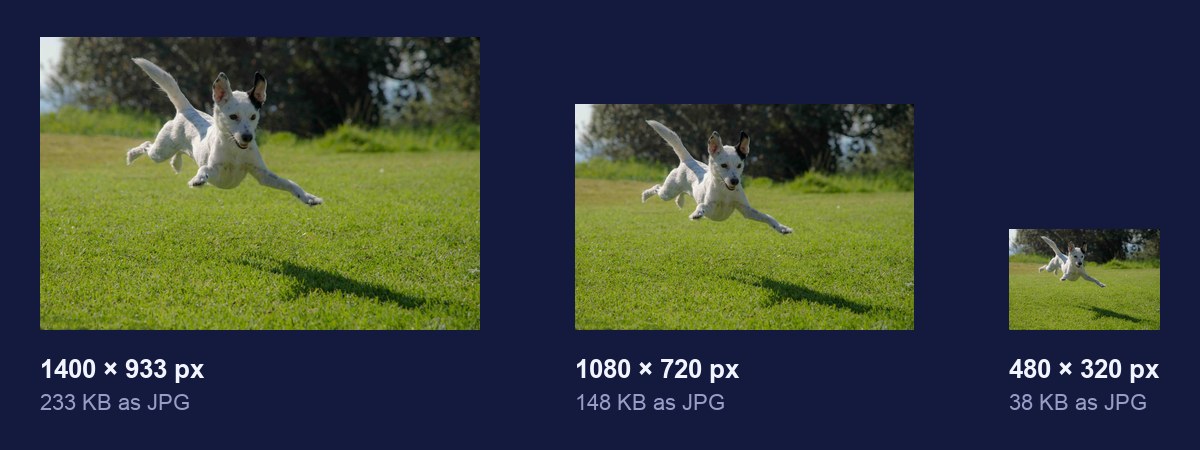
Photo editing workspace with resizing tools
Resizing changes the dimensions of an image while keeping the full frame intact.

How to resize an image

Follow these steps to resize your photo using our tool.

  1. Click the upload area or drag and drop your image onto it. The tool accepts all common image formats including PNG, JPEG, and WebP.
  2. Your image appears in the preview area at its original size. The sidebar shows the current dimensions.
  3. Enter your target width and height in pixels. When the aspect ratio lock is on, changing one dimension automatically updates the other to keep the image from stretching.
  4. Choose a preset size if you are targeting a specific platform. Each preset matches the recommended dimensions for that social media site or service.
  5. Click Save resized image to download the result as a PNG file. The original file on your device is not modified.

The preview updates in real time as you change the dimensions. This lets you see exactly what the final image will look like before you download. If you want to start over, click Reset and the tool returns to the upload screen.

Tips for better resizing

  • Keep the aspect ratio locked to avoid stretching. When you change the width or height without preserving the ratio, the image looks squashed or stretched. Our tool locks the ratio by default.
  • Never upscale beyond the original resolution. Enlarging an image makes it look blurry or pixelated because the resizer has to guess what the missing pixels should look like. It is always better to start with a larger image and scale down.
  • Use platform-specific presets for social media. Instagram, Twitter, Facebook, and LinkedIn each have recommended image dimensions. Using the right size ensures your images display correctly without being cropped by the platform.
  • Resize for both quality and file size. A smaller image has fewer pixels, which means a smaller file size. This is important for web performance. A page full of oversized images takes longer to load, which hurts user experience and search rankings.
  • Check the pixel dimensions before printing. Print requires higher resolution than screens. A general rule is 300 DPI (dots per inch) for print. A 900 by 600 pixel image prints well at 3 by 2 inches but will look soft at 6 by 4 inches.
Resized images displayed on different devices
Correctly resized images look sharp on every device and platform.

Common use cases for resizing images

Social media managers resize images constantly because every platform has different size requirements. A photo that looks perfect on Instagram needs different dimensions for a Twitter header, a Facebook cover, or a LinkedIn banner. Instead of creating separate versions in Photoshop, you can resize each copy to the exact dimensions needed for that platform in seconds.

Ecommerce sellers resize product photos to meet marketplace requirements. Amazon, eBay, Shopify, and Etsy all have minimum and maximum image size requirements. Listing images that do not meet these requirements may be rejected or displayed incorrectly. Resizing your product photos to the required dimensions before uploading ensures your listings look professional and meet platform guidelines.

Web developers and designers resize images to optimize page load times. A 4000 by 3000 pixel photo from a modern smartphone is overkill for a website thumbnail or a blog post image. Resizing it to 1200 by 900 pixels dramatically reduces the file size without a noticeable quality difference on screen. Smaller images load faster, use less bandwidth, and improve the Core Web Vitals scores that search engines use for ranking.

Photographers and artists resize images for portfolio submission, printing, and email. Many submission portals have strict size limits. A 20 megapixel photo is too large to email. Resizing it to 2000 pixels on the longest side makes it easy to share while keeping enough detail for screen viewing. For print, resizing to the correct DPI ensures the output looks sharp at the target print size.

Photo editing workflow on a laptop
Resizing is an essential step in any image workflow, from web design to print production.

How resizing affects image quality

Resizing an image down (making it smaller) generally preserves quality because the resizer averages groups of pixels together. This process, called downsampling, produces a sharper result than simply removing pixels. A photo that is 4000 by 3000 pixels resized to 2000 by 1500 pixels will look just as sharp on screen because each pixel in the output represents more visual information from the original.

Resizing an image up (making it larger) always reduces quality because there are not enough pixels in the original to fill the new dimensions. The resizer has to interpolate — guess what the missing pixels should look like. This creates a softer, less detailed image. The more you upscale, the more obvious the quality loss becomes. For best results, always start with an image that is larger than your target size.

For web use, resizing down is almost always safe. Screen resolutions are low enough that even a moderately compressed image looks fine. A good rule of thumb is to keep images under 2000 pixels on the longest side for web use. This balances quality with file size. For print, you need higher resolution — aim for 300 DPI at the final print size. A 6 by 4 inch print needs an image that is at least 1800 by 1200 pixels.

Image dimensions explained

Image dimensions are measured in pixels (px). The width is the number of pixels from left to right, and the height is the number from top to bottom. A 1920 by 1080 pixel image has 1920 columns and 1080 rows of pixels, for a total of about 2 million pixels (2 megapixels). The more pixels an image has, the more detail it can show and the larger it can be displayed without looking pixelated.

Different platforms and use cases require different dimensions. A Twitter profile photo is 400 by 400 pixels. A Facebook cover image is 851 by 315 pixels. A YouTube thumbnail is 1280 by 720 pixels. A full HD desktop wallpaper is 1920 by 1080 pixels. Knowing the right dimensions for your use case helps you resize correctly the first time, without guesswork or trial and error.

The relationship between width and height is called the aspect ratio. An image that is 1920 pixels wide and 1080 pixels tall has a 16:9 aspect ratio. An image that is 1080 pixels wide and 1080 pixels tall has a 1:1 (square) aspect ratio. When you resize an image, changing one dimension without changing the other alters the aspect ratio and stretches the image. Keeping the aspect ratio locked preserves the original shape.

Why size matters for web performance

Image file size directly affects how fast a page loads. A single unoptimized photo from a modern smartphone can be 5 to 10 megabytes. Resizing it to appropriate web dimensions reduces that to 200 to 500 kilobytes — a 95 percent reduction. On a slow connection, that difference can turn a 10-second page load into a 2-second page load. Every second matters for user experience and search engine rankings.

Google uses page speed as a ranking factor, and images are the largest contributor to slow pages. The Core Web Vitals metrics that Google measures include Largest Contentful Paint (LCP), which is directly affected by image size. Resizing your images to the dimensions they will actually be displayed at is one of the most effective ways to improve LCP and your search ranking.

Resizing also saves bandwidth for your visitors. If someone is browsing on a mobile data plan, every kilobyte counts. Serving a 200 kilobyte image instead of a 5 megabyte image saves your visitor money and makes your site more accessible on slow or expensive connections. This is especially important for ecommerce sites where product images make up the bulk of the page weight.

All processing happens inside your browser. Your images never leave your computer. Nothing is uploaded to any server and no files are stored after you close the page. There are no hidden limits, no watermarks, and no usage caps. You can resize as many images as you need, completely free.