Why crop before you post
Every app shows photos inside a fixed shape. When your photo does not fit, the app crops it for you, and it does not know where the face is. That is how heads get cut off and products get chopped in half.
Cropping yourself first means you decide what stays in the frame. The app then has nothing left to cut.
The shapes that matter
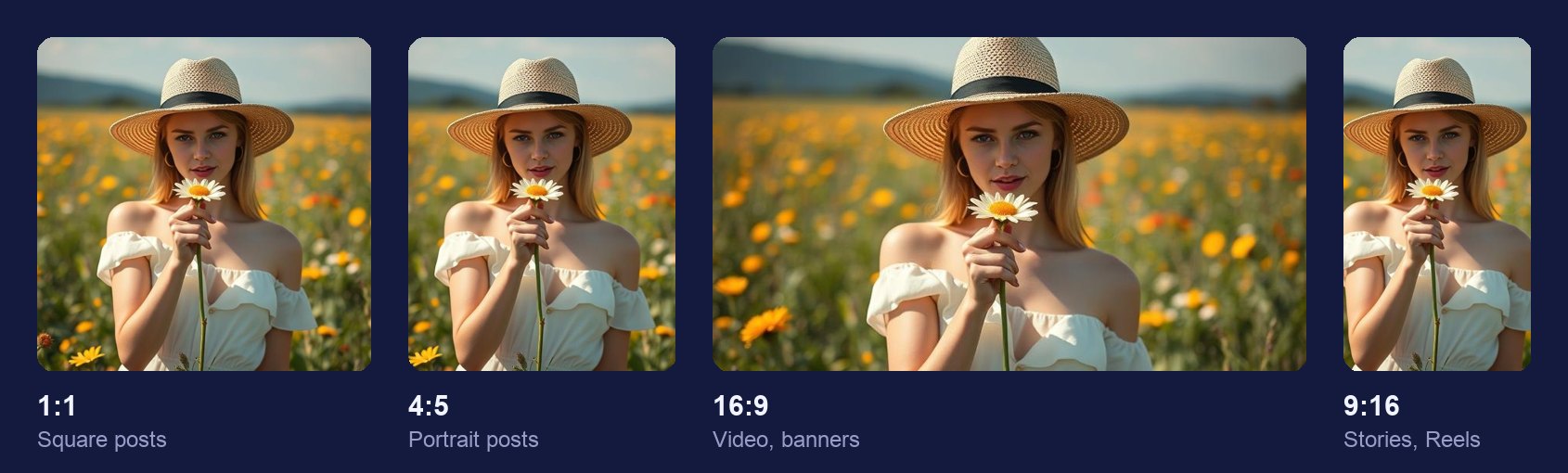
- 1:1 square. Instagram and Facebook feed posts, marketplace listings. 1080 × 1080 px.
- 4:5 portrait. The tallest photo Instagram shows in the feed, so it takes the most space on screen. 1080 × 1350 px.
- 9:16 tall. Stories, Reels, TikTok and Shorts. 1080 × 1920 px.
- 16:9 wide. YouTube thumbnails, slides and most video. 1280 × 720 px for a thumbnail.
- Wide banners. LinkedIn cover photos are 1584 × 396 px. X headers are 1500 × 500 px.
- Circles. Profile pictures almost everywhere. Crop a square, then use the circle cropper to check the round version.
Apps change these from time to time, so treat them as a good starting point rather than a rule.
How to crop a photo for social media
- Open the cropper. The image cropper runs in your browser. The photo never leaves your device.
- Add your photo. Choose it, drag it in, or paste it.
- Pick the shape. Choose 1:1, 4:5, 9:16 or 16:9, or type an exact size in pixels.
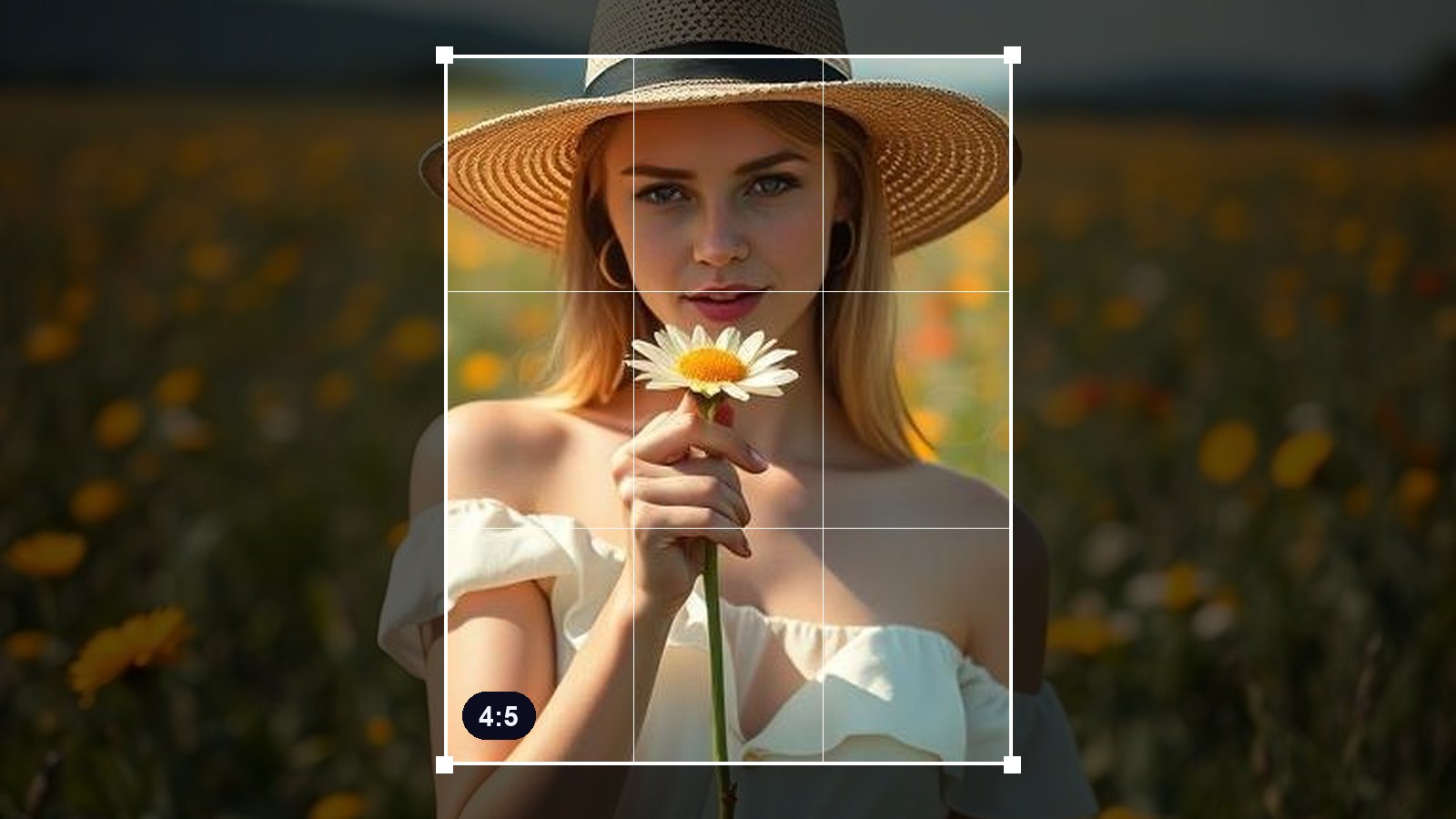
- Frame the subject. Drag the box so faces and text sit well inside it.
- Download. Upload the result and the app will show it as it is.
Tips for better crops
- Keep faces off the edges. Apps add buttons and captions over the edges of stories and covers.
- Leave headroom. A little space above the head stops a circle crop from slicing the forehead.
- Use the grid. Placing eyes or the product on a third line looks more balanced than dead centre.
- Check it on a phone. That is where most people will see it.
- Keep the original. Cropping throws pixels away. Keep the full photo for the next shape you need.
- Crop, then resize. Get the shape right first, then set the exact size with the image resizer if you need to.
Cropping and quality
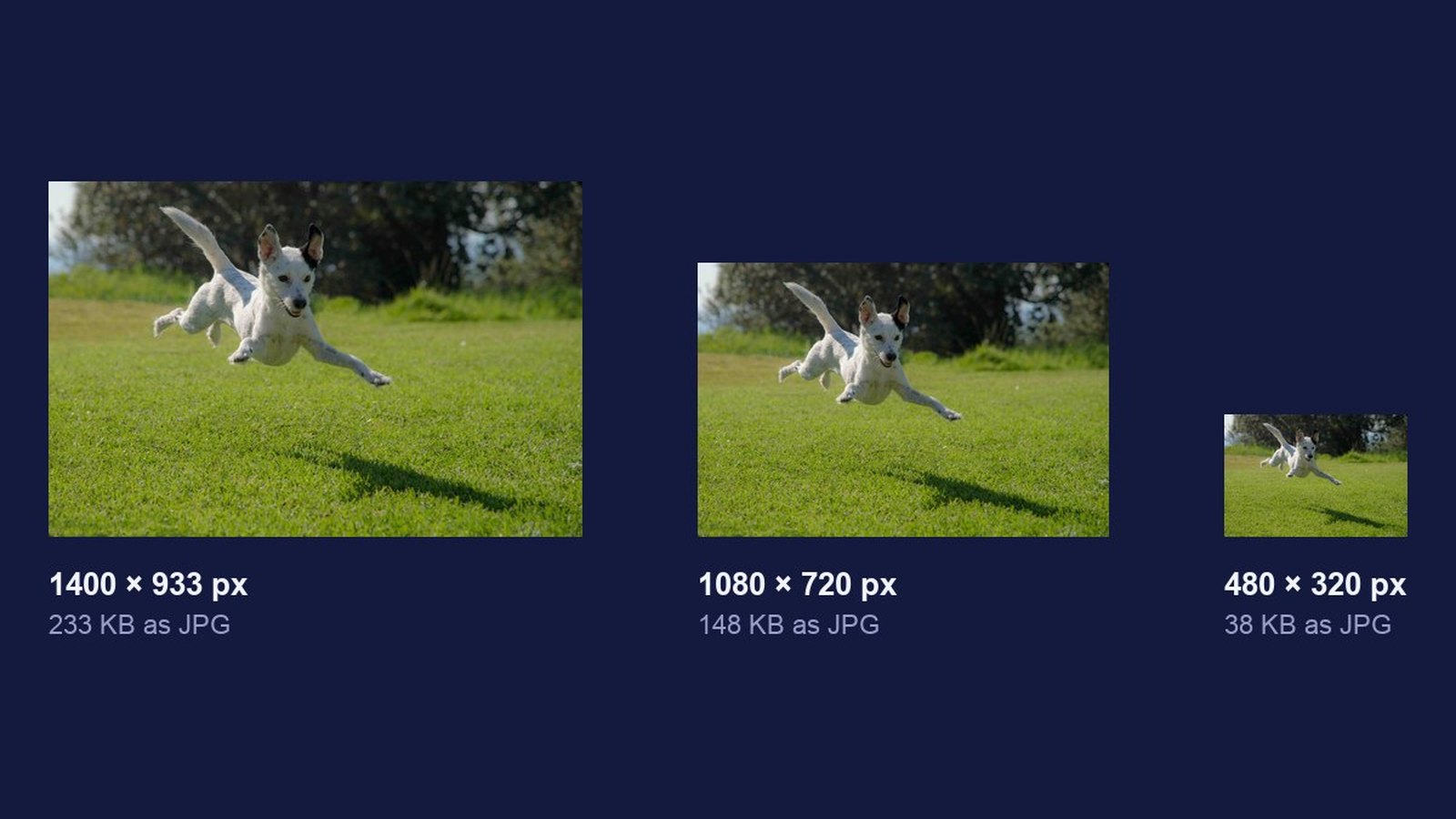
Cropping does not blur a photo. It keeps the pixels inside the box exactly as they were. What it does is leave fewer of them, so a tight crop of a small photo can look soft when it is shown large. Start from the biggest version of the photo you have.