What resizing does
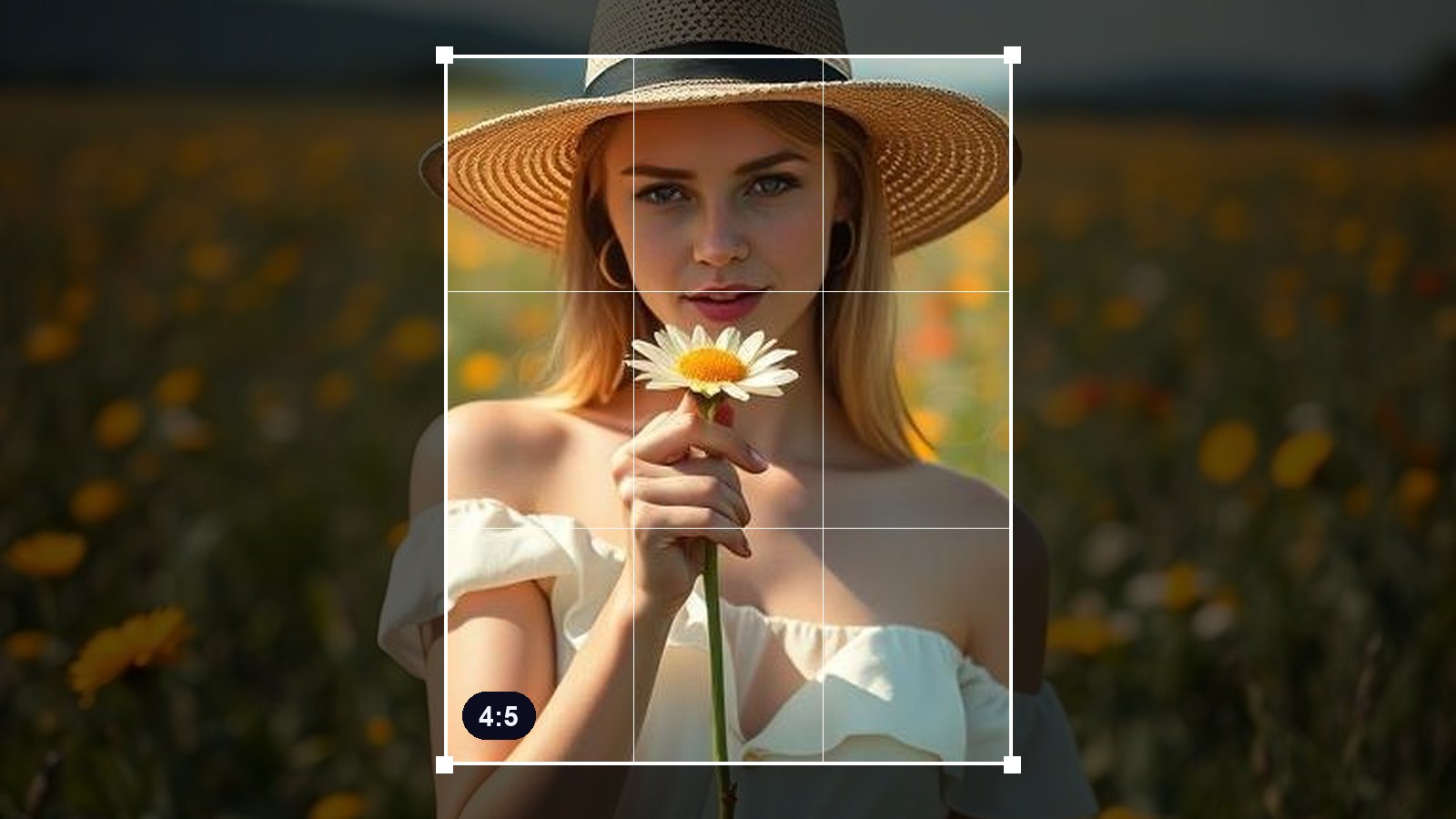
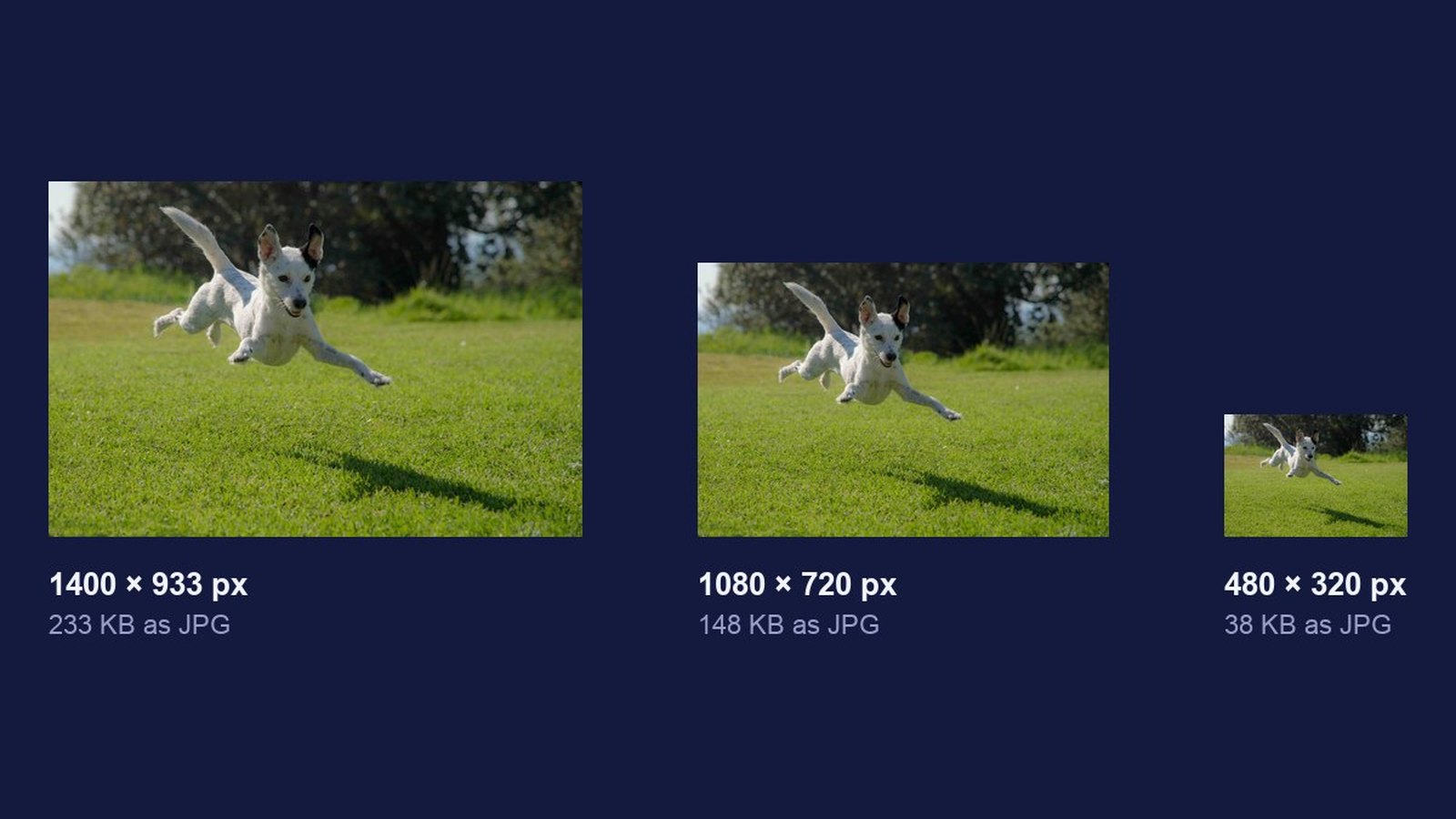
Resizing changes how many pixels a photo has. The whole picture gets smaller or larger, and nothing is cut off. That is the difference from cropping, which keeps the pixels it has and throws away the edges.
Getting the size right matters both ways. Too big and a website loads slowly or an email bounces. Too small and a print comes out soft.
How to resize a photo
- Open the resizer. The image resizer runs in your browser. The photo never leaves your device.
- Add your photo. It shows the current size in pixels.
- Set the new size. Type a width or height, or use a preset. The shape is kept, so nothing stretches.
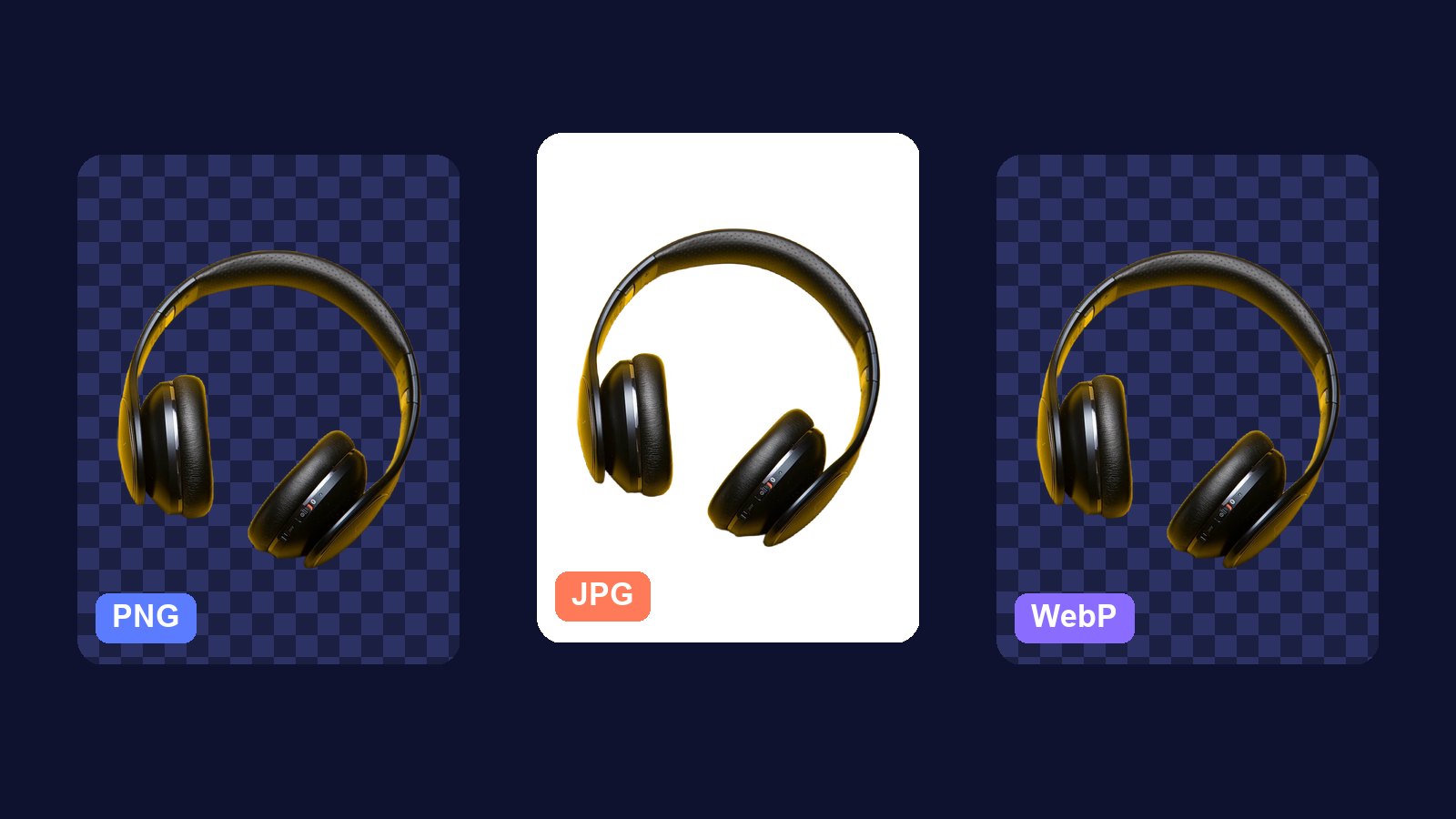
- Pick the format. JPG for photos, PNG for graphics or see-through images, WebP for small files on the web.
- Check the file size and download. You see the new size before you save.
What size for what
- Websites. 1600 to 2000 px on the longest side for full-width images, around 1200 px for images inside text.
- Email. Around 1200 px, saved as JPG, keeps most photos well under 300 KB.
- Social posts. 1080 px wide covers Instagram and most feeds.
- Print. Aim for 300 pixels per inch. A 6 × 4 inch print needs 1800 × 1200 px. An A4 page needs about 3500 × 2480 px.
Tips for sharp results
- Go down, not up. Making a photo smaller keeps it sharp. Making it bigger invents pixels and looks soft.
- Keep the shape. Changing only the width stretches faces and products.
- Start from the original. Resize the biggest copy you have, not one that has already been shrunk.
- Watch the file size. For the web, most photos should end up under 500 KB.
- Crop first if the shape is wrong. Resizing cannot turn a wide photo into a square. The image cropper can.
- Keep the full-size copy. You may need it for a print later.
Why size matters on the web
A phone photo is often 4000 px wide and several megabytes. A web page rarely shows it wider than 1600 px. Uploading the full file makes every visitor download pixels they never see, and a slow page loses people. Resizing first is the easiest speed win there is.